
Your Telegram cloud, organised.
Visual guide to TeleDisk Desktop 1.7: File Manager, uploads, downloads, Stream libraries, Media backups, server, WebDAV and FUSE. Real screenshots and step-by-step workflows.
1. Install and prepare your first sign-in
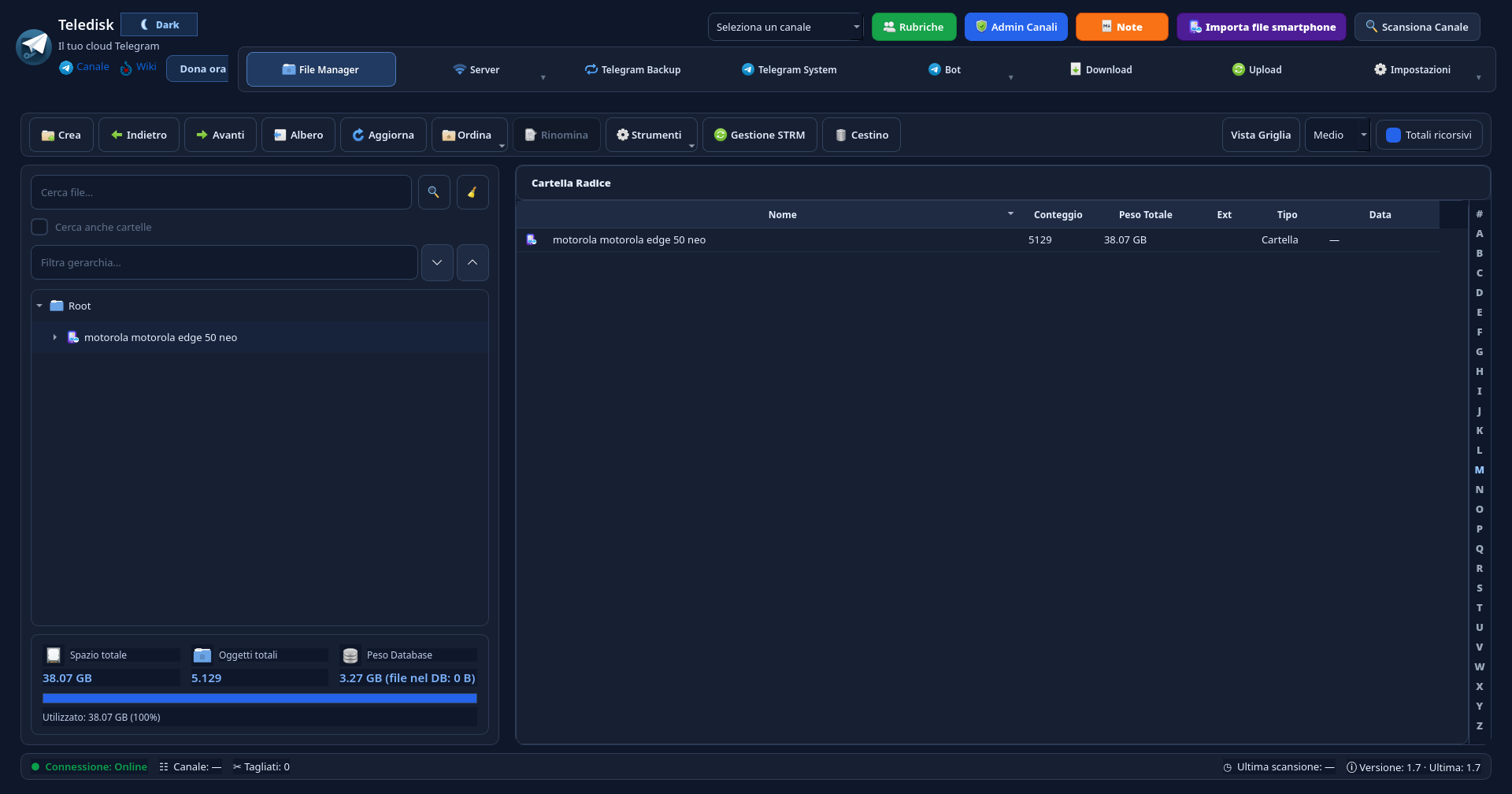
TeleDisk Desktop 1.7 organises references to your Telegram files on your computer. The app runs on your PC or server; its database and cache are local, while cloud files are on Telegram. TeleDisk is free: request a free monthly licence extension from your website account.
- Download the Windows or Linux release. On Linux, make the AppImage executable and launch it.
- Complete Telegram sign-in in the app. If your account uses two-step verification, follow Telegram’s sign-in flow.
- Start with your own channel and a few test files. Choose it in the top selector and build its index with “Scansiona Canale” (Scan channel).
First test: upload a non-sensitive document and download it into a different folder to verify the complete workflow.
2. Find your way around tabs and tools
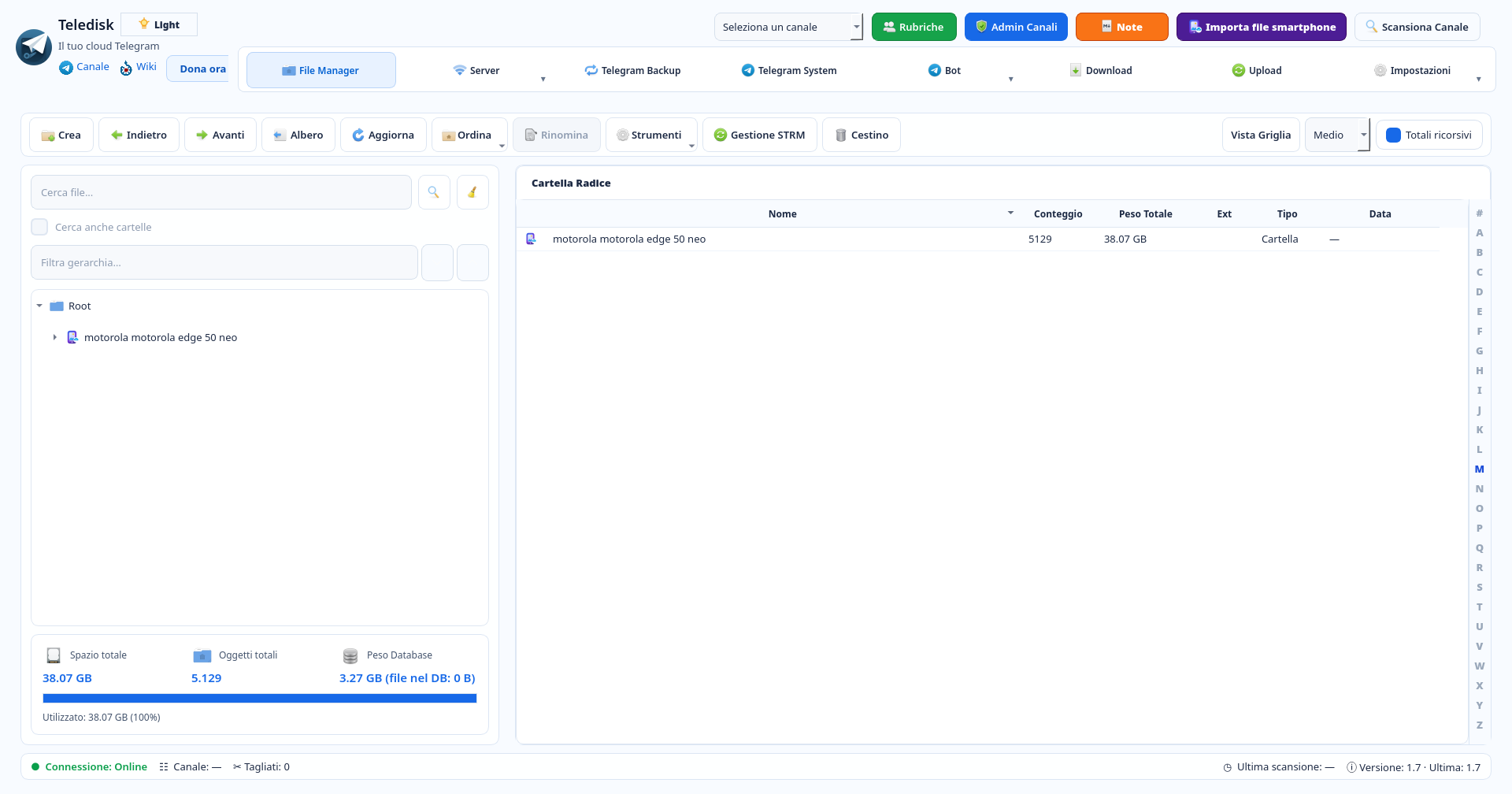
The top bar separates File Manager, Server, Telegram Backup, Telegram System, Bot, Download, Upload and Settings. Some entries open menus: in 1.7 the Server menu groups library tools and media-server integrations.
- Use File Manager to browse the archive and Upload/Download to inspect transfer queues.
- Open Server to find Server / Stream, Gestione Librerie (Manage libraries), Ispeziona Libreria (Inspect library), Doppioni TMDB (TMDB duplicates) and Episodi mancanti (Missing episodes).
- The same menu includes Skip Intro, Bot Librerie, Gestione Canale Master, Supporto Rclone WebDAV and File System FUSE. The “i” buttons on individual pages explain specific controls.
Preparing a catalogue for the APK? Start with Server → Gestione Librerie. Checking current streams? Choose Server / Stream.
On first opening, some sections prepare databases and caches. Wait until the interface is ready before repeating a command.
3. Find and organise files
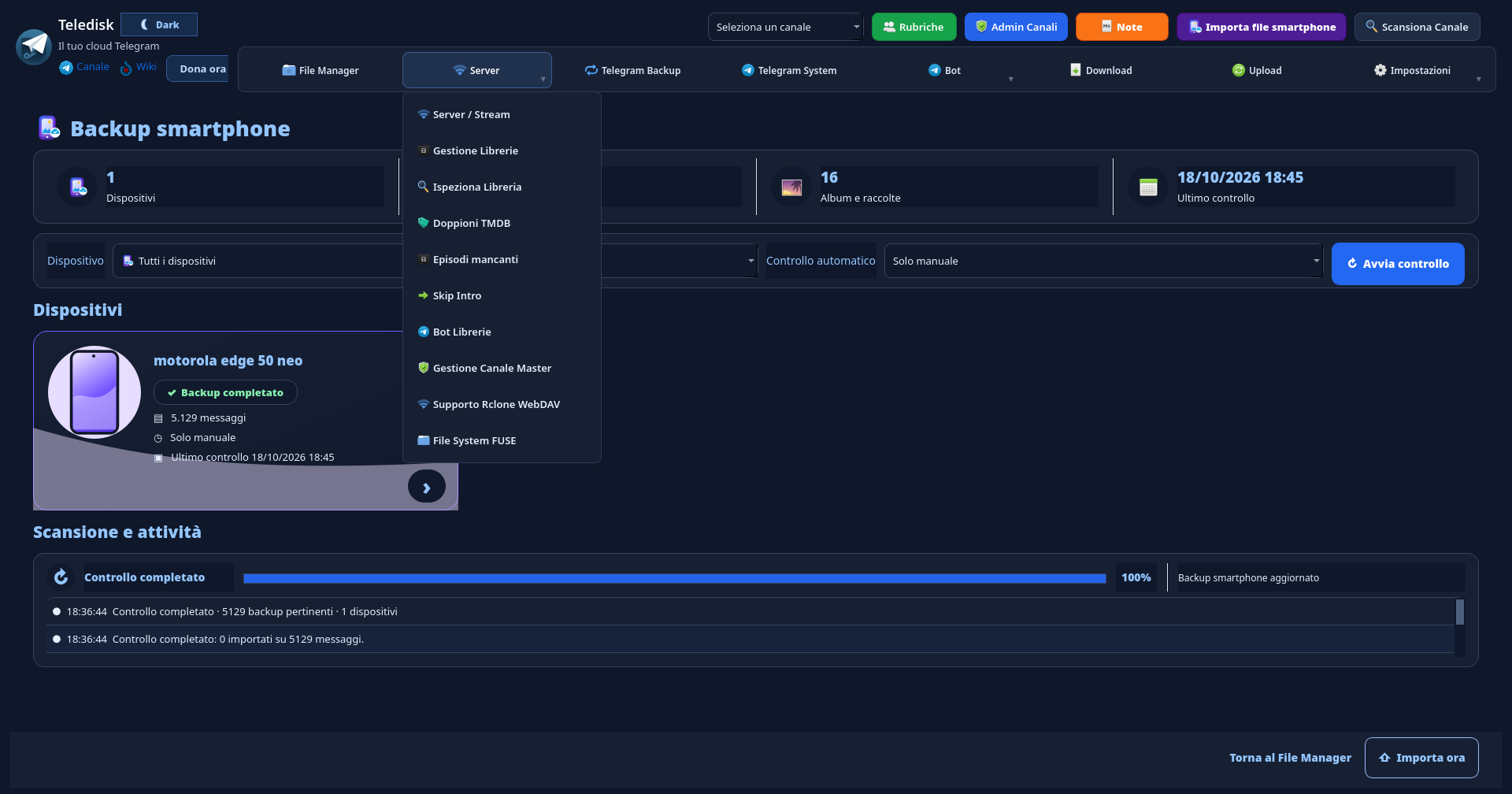
File Manager shows a folder tree on the left and the selected contents on the right. Search for files and filter the hierarchy without confusing the local index with a complete copy of cloud content.
- Open a folder from the tree or table. Use Indietro (Back), Avanti (Forward) and Albero (Tree) to navigate.
- Type in “Cerca file…” (Search files). Use “Cerca anche cartelle” to include folders. “Filtra gerarchia…” filters the tree.
- Use Aggiorna (Refresh) and Ordina (Sort) for the current view. Total space, object count and database size at the bottom are separate indicators.
Example: search files for “holidays”; use the hierarchy filter instead to narrow the tree to matching folder names.
4. Upload: source, destination and queue
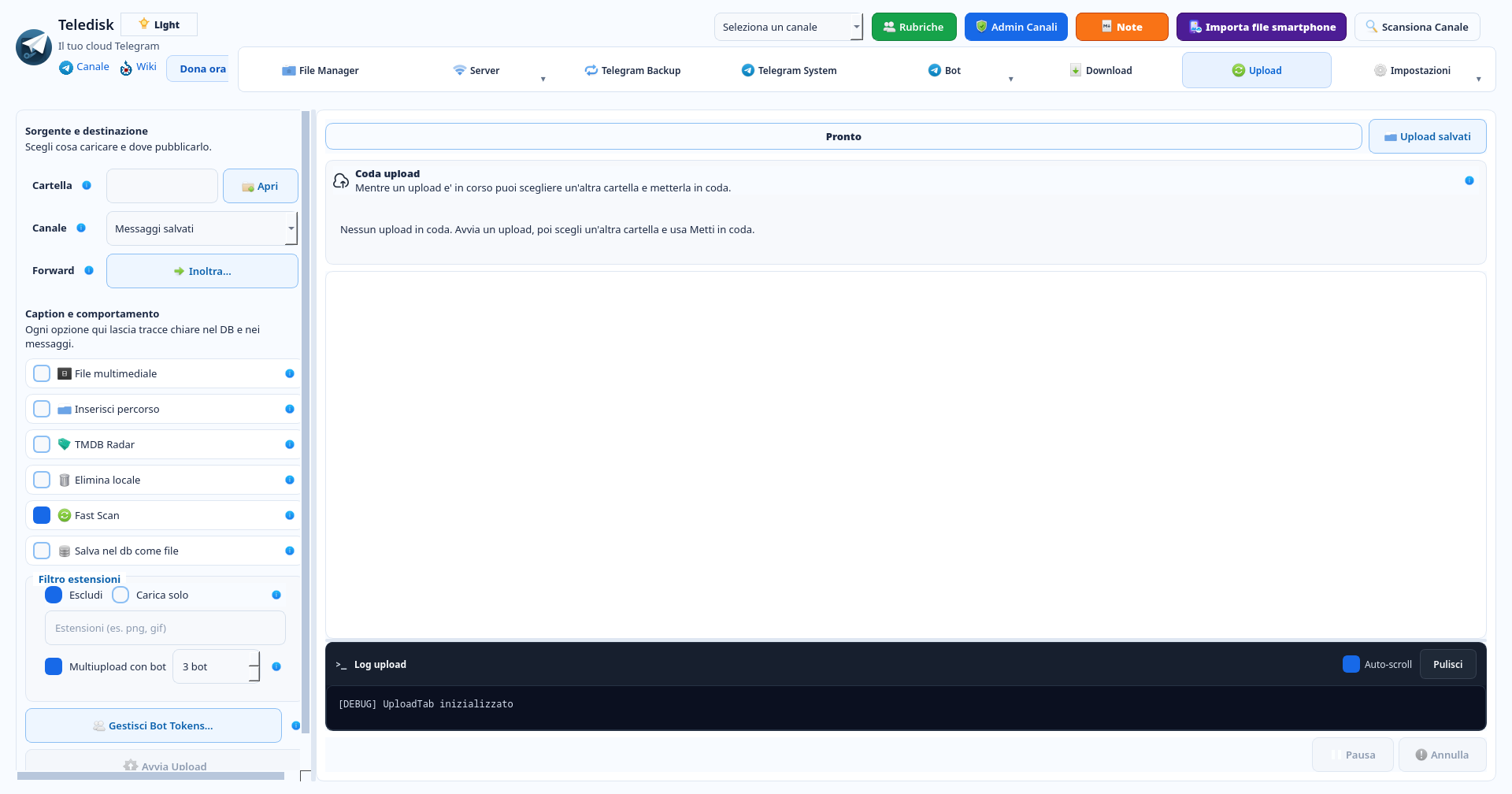
Upload separates source, destination and caption options on the left from status, queue and log on the right. Options affect how messages are indexed: first choose what to upload and where to send it.
- Use “Apri” (Open) to choose a source folder, then verify the destination channel. Leave “Elimina locale” (Delete local) off for the first test.
- Enable “Inserisci percorso” (Include path) if you need folder structure. Choose Exclude or Upload only for the extension filter.
- Start a small batch. During an upload you can choose another folder and use “Metti in coda” (Queue); check results in the log and File Manager.
- “Multiupload con bot” requires configured bots with channel permissions. The number shown is one configuration, not a required setting.
Example: use Documents/2026 and a test PDF. With path inclusion enabled, the caption retains folder context.
“Elimina locale” removes the original after upload and database registration and requires confirmation; it is not a recycle bin. TMDB Radar reads TMDB IDs already present in filenames; it does not perform an online lookup at this stage.
5. Download and verify the copy
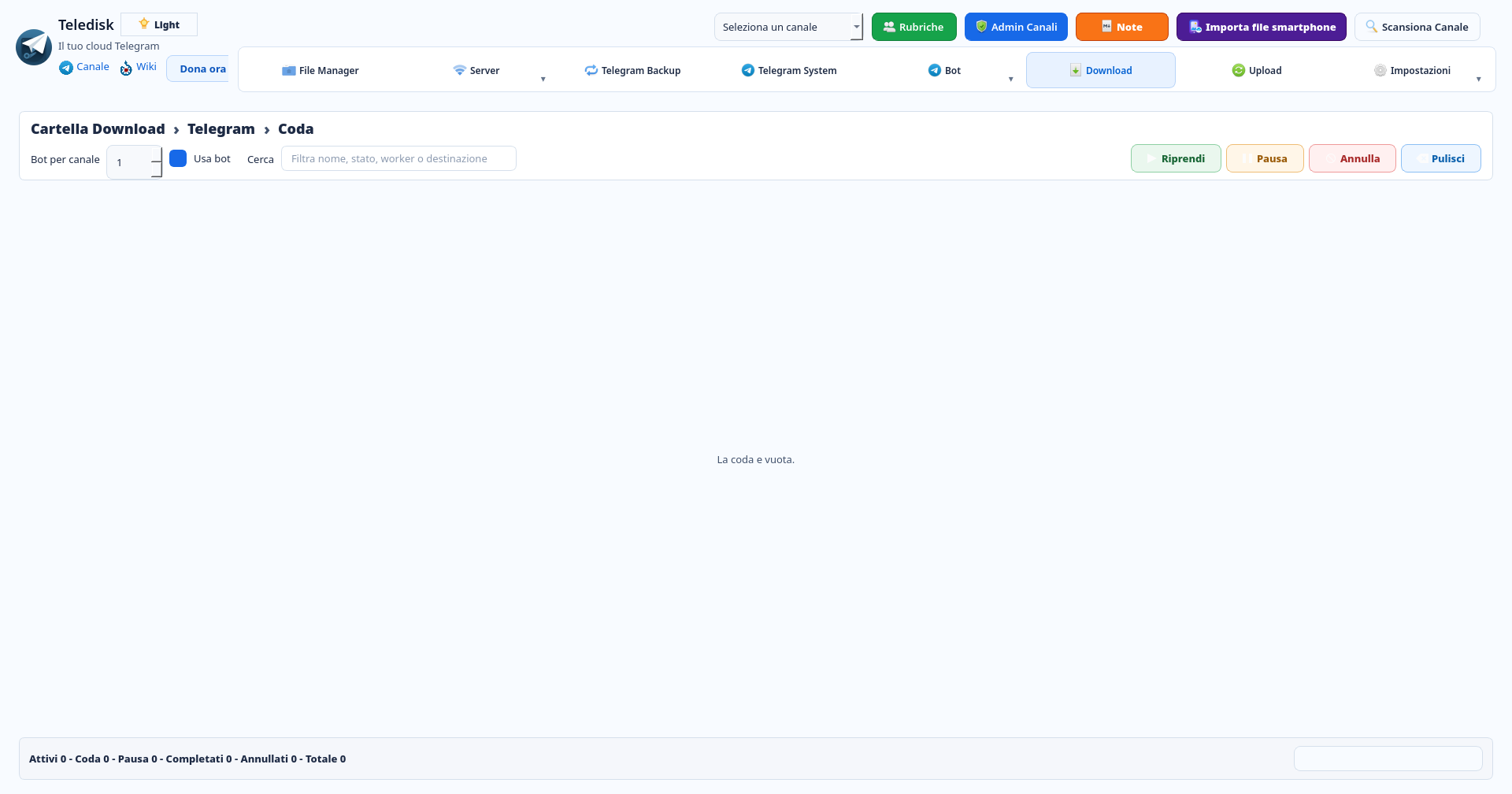
The Download tab groups transfers started from File Manager. Filter the queue by name, status, worker or destination, and read totals by state at the bottom.
- Select a file or folder in File Manager and use Download from the context menu. Choose the local destination.
- Open Download to follow the queue. Resume, Pause and Cancel affect transfers; use them when needed.
- After completion, open the file in the destination folder. For important archives, compare size and checksum with the original.
Example: download the test PDF into a new folder and open it. An empty queue, as pictured, means no transfers are listed.
6. Create a library and prepare the catalogue
Server → Gestione Librerie manages the media catalogue also used by Stream. Its media database is separate from the general File Manager index: a file in the tree does not automatically appear in the APK.
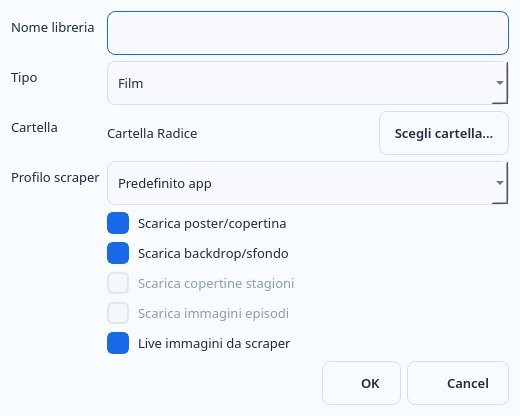
- Choose “Aggiungi libreria” (Add library). Set name, type, folder and scraper profile; choose poster/image options before confirming.
- Select the configured library and scan it. Check content matching and correct metadata when necessary.
- Distinguish database regeneration from metadata updates. The 1.7 main view includes “Rigenera DB” (Regenerate DB) and “Allinea e pubblica DB” (Align and publish DB); read their “i” help before starting.
- After publication, import the catalogue into Stream for Android through the configured channel or bot workflow.
Example: create “Personal videos” with a few of your own files. Check Desktop results before publishing the phone catalogue.
7. Manage artwork, images and cache
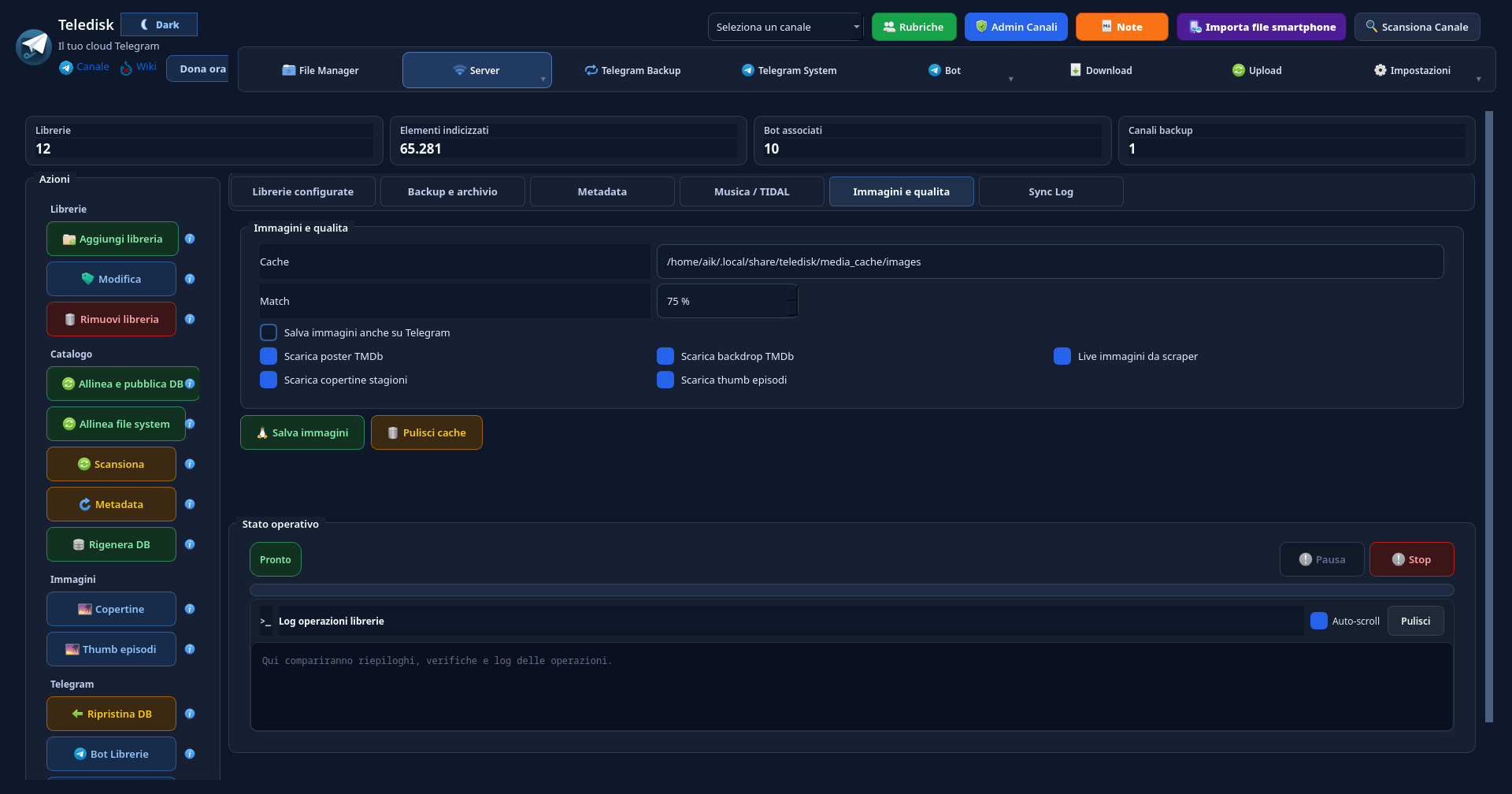
Within Manage libraries, “Immagini e qualità” groups local cache, matching threshold and artwork choices. The screen also shows separate commands for covers and episode thumbnails.
- Open “Immagini e qualità” (Images and quality). Check the cache location; it depends on your user and installation.
- Choose poster, backdrop, season-cover and episode-thumbnail options. Also review “Live immagini da scraper”.
- Save settings after reviewing them. “Pulisci cache” (Clear cache) is a separate operation, not a required step for every update.
Example: to improve episode images, review the dedicated option and “Thumb episodi” command rather than unnecessarily rebuilding the whole archive.
8. Monitor the server and streams
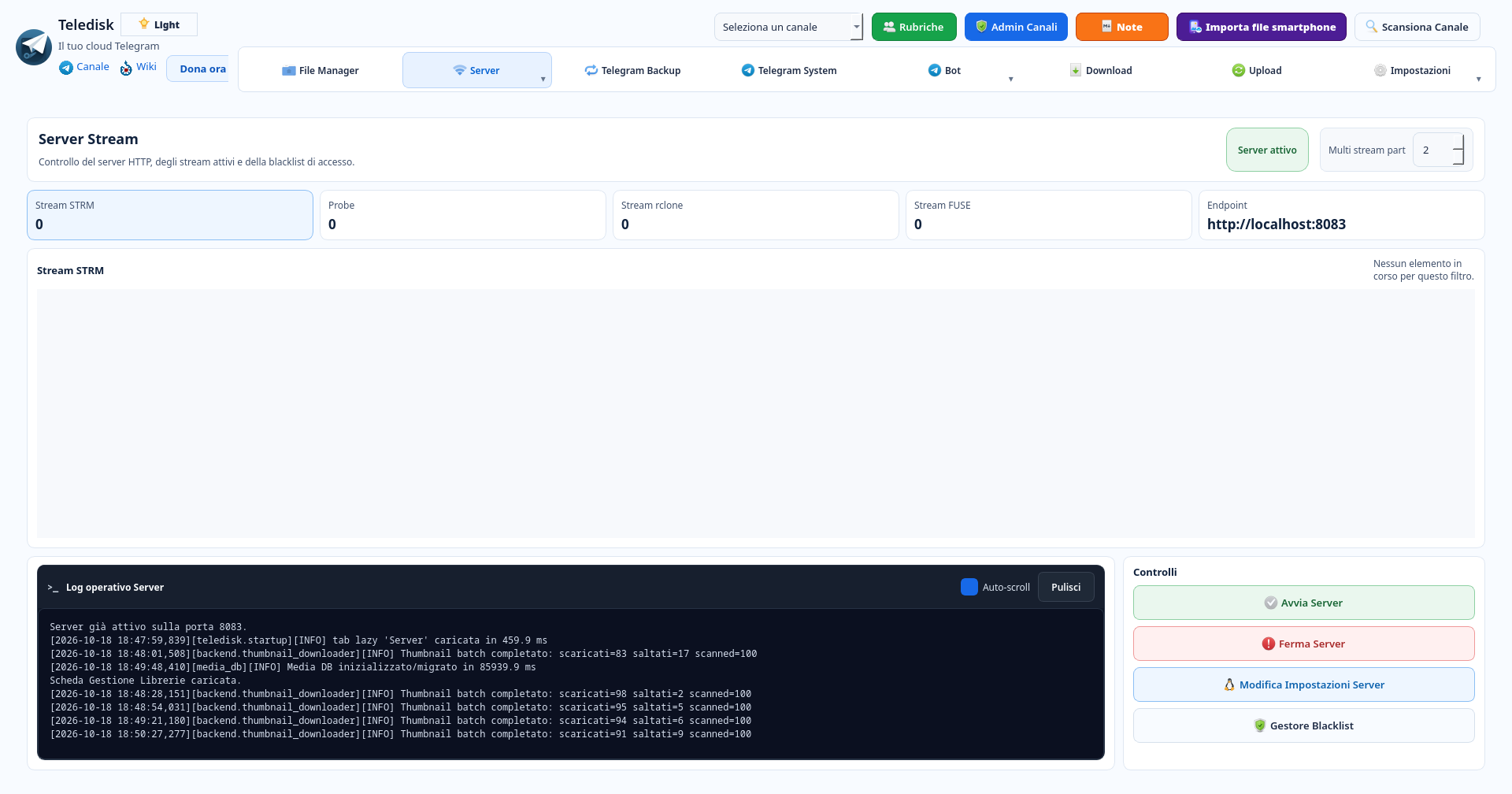
Server → Server / Stream shows local HTTP server status and counters for STRM, probes, rclone and FUSE. It is an operational view: an active server can have zero current streams.
- Open Server / Stream and check the displayed endpoint. Do not assume every installation uses the same port.
- During playback, inspect the relevant section and operational log. The example capture has no current streams.
- Use start/stop controls when necessary. For access issues, review server configuration and blacklist.
Example: if a player cannot read an STRM file, first check server status and endpoint, then Telegram content access permissions.
9. Connect rclone, Jellyfin or Emby through WebDAV
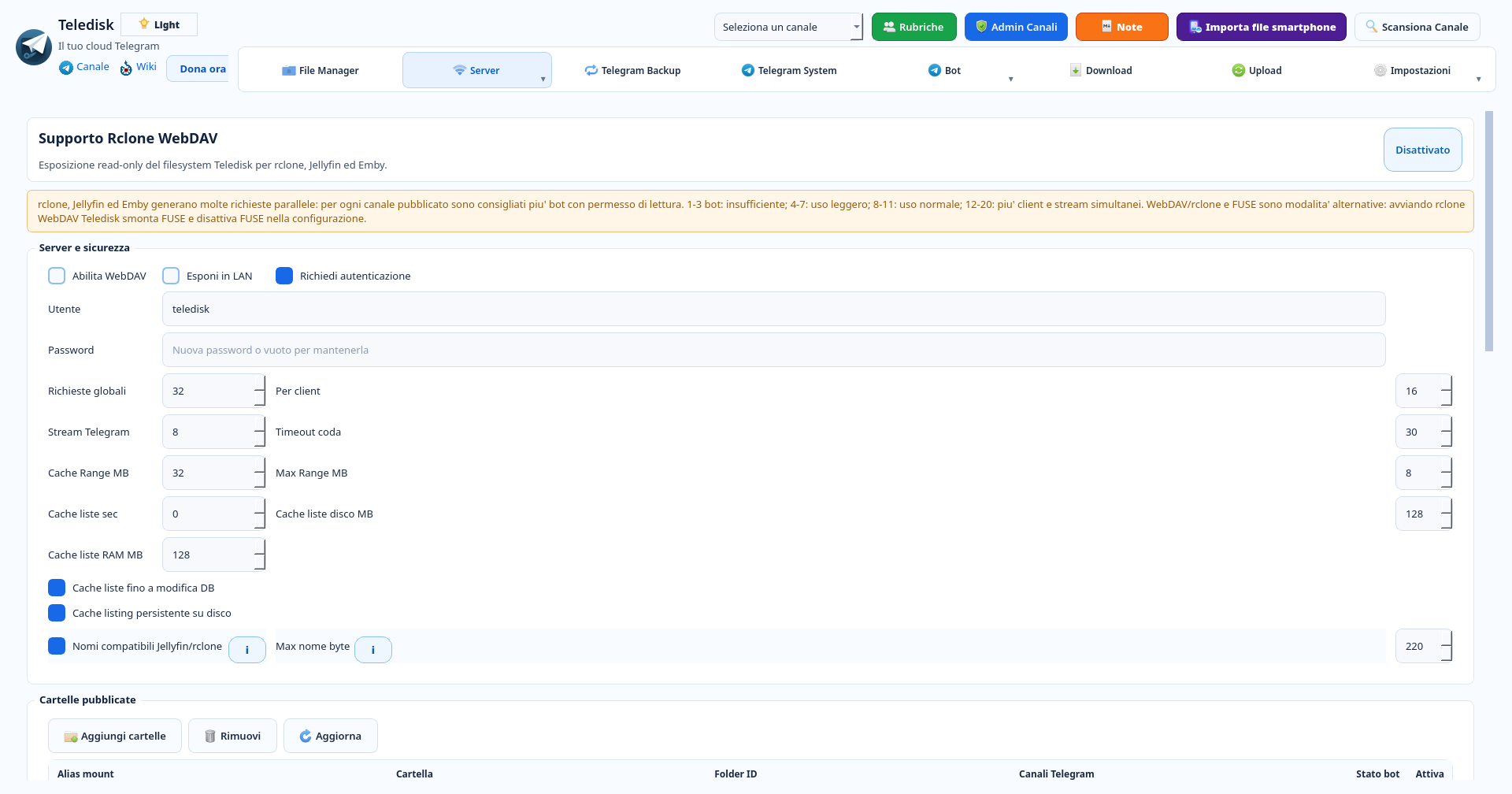
Server → Supporto Rclone WebDAV exposes published folders as read-only. Names come from the local index; file bytes are read from Telegram when a client requests them.
- Set WebDAV username/password and keep authentication required. Start locally; enable LAN access only for your use case.
- Add folders to publish and check aliases. You do not need to expose the entire archive.
- Use the app’s controls and generated rclone command to mount the share. Add the mounted folder as a library in Jellyfin or Emby.
- For slowness or errors, inspect read-capable bots, parallel requests and logs instead of increasing every limit at once.
Example: publish only your Videos folder with a clear alias and verify one item before adding more folders.
In 1.7, WebDAV/rclone and FUSE are alternative modes: starting one disables the other. This capture shows WebDAV disabled and exposes no password.
10. Mount the archive on Linux with FUSE
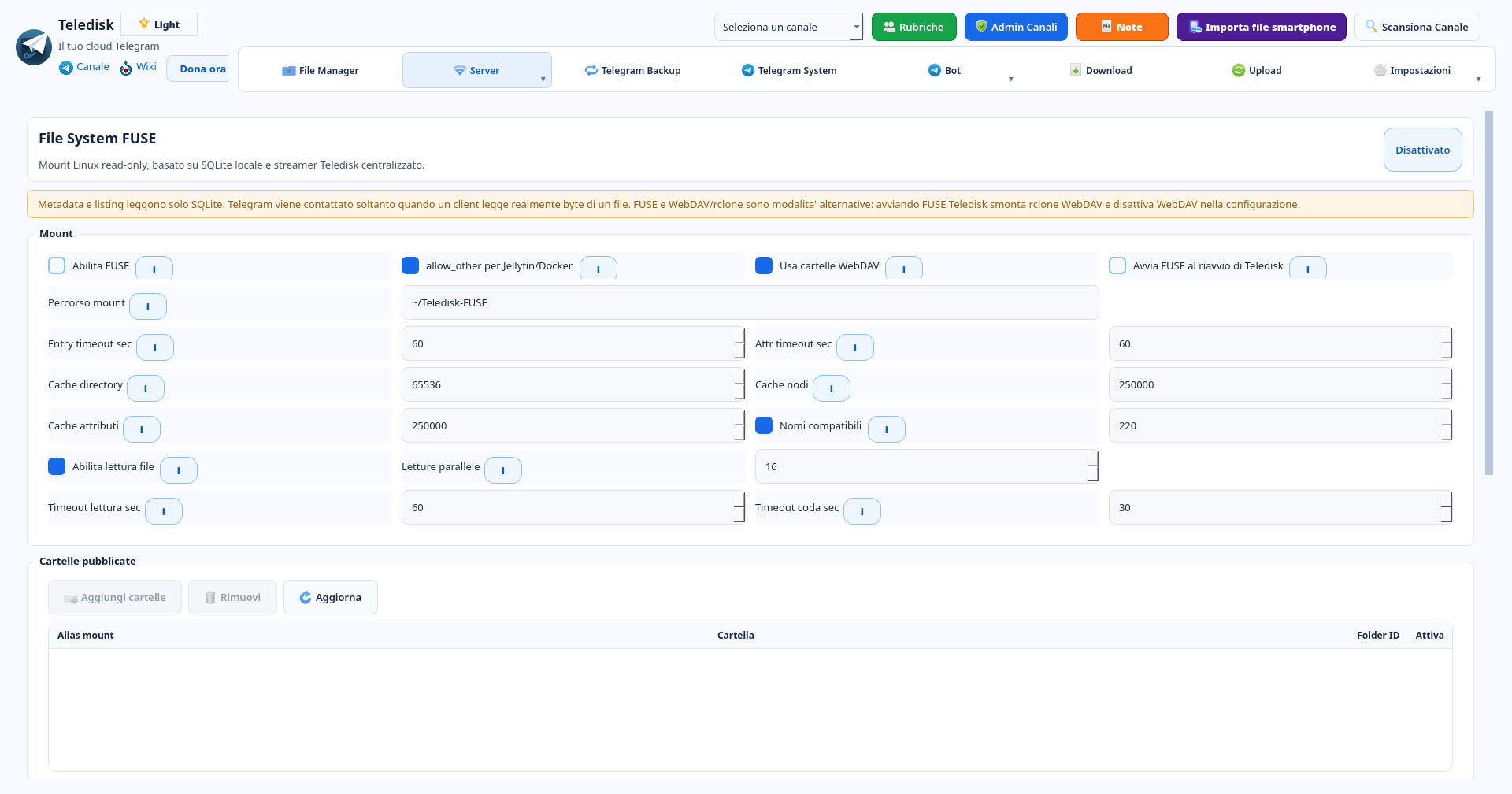
Server → File System FUSE is the Linux read-only mount based on the SQLite index and TeleDisk streamer. It is an alternative to WebDAV/rclone, not another service to run simultaneously.
- Check the mount path and whether to reuse the folders selected for WebDAV.
- Consider “allow_other per Jellyfin/Docker” only if another process needs mount access and your Linux environment allows it.
- Review cache, timeout and parallel-read help. Start the mount after checking configuration, then test a file.
Example: use a dedicated mount folder and check that the media server can read it under its own system user.
Visible values and checkboxes belong to the captured installation; they are not settings to copy without review.
11. Prepare STRM links for players
From File Manager, “Gestione STRM” opens folders with STRM destination, item count and state. An STRM file is a player link, not a complete copy of the video.
- Open Gestione STRM from the File Manager toolbar and review available folders.
- Check the STRM destination and select only the rows you intend to process.
- Use “Genera STRM selezionati” (Generate selected STRM) for a first batch. “Genera tutti gli STRM” covers the whole list, not just the current row.
- Open an STRM in your configured player and verify the connection to the TeleDisk server.
Example: generate links for one folder of your own videos, verify one in the player and then extend the catalogue.
12. Align channels with Telegram Backup
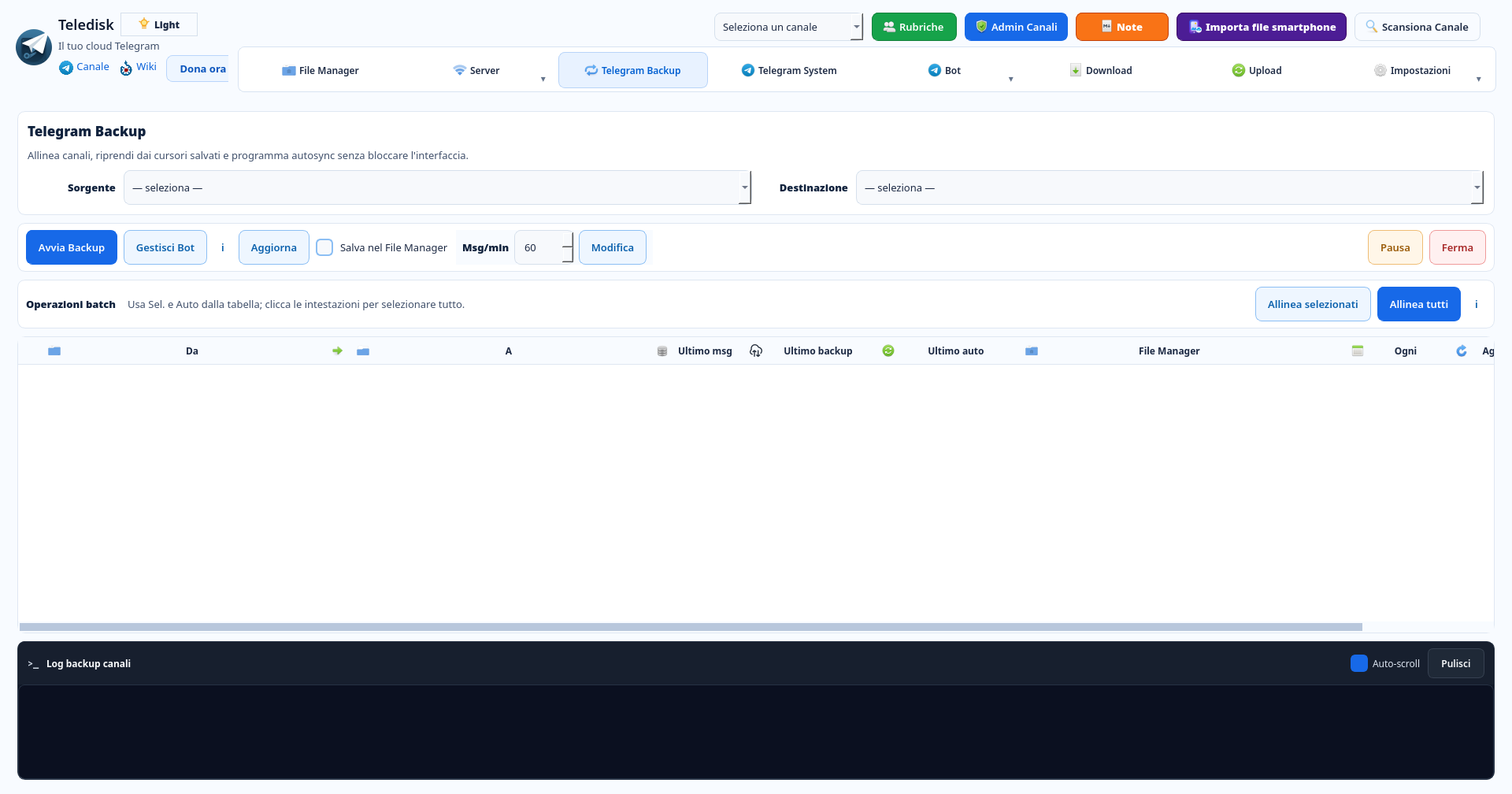
Telegram Backup has separate source/destination selectors, bot controls and batch operations. It manages alignment between channels and is separate from phone-photo backup.
- Choose source and destination channels and check account/bot permissions.
- Review “Salva nel File Manager” (Save in File Manager) and the messages-per-minute setting before starting.
- For multiple jobs use table selections. “Allinea selezionati” and “Allinea tutti” have different scopes. Follow progress and logs.
Example: test two channels you own with a few messages and verify the destination before scheduling larger jobs.
13. Find Media phone backups on Desktop
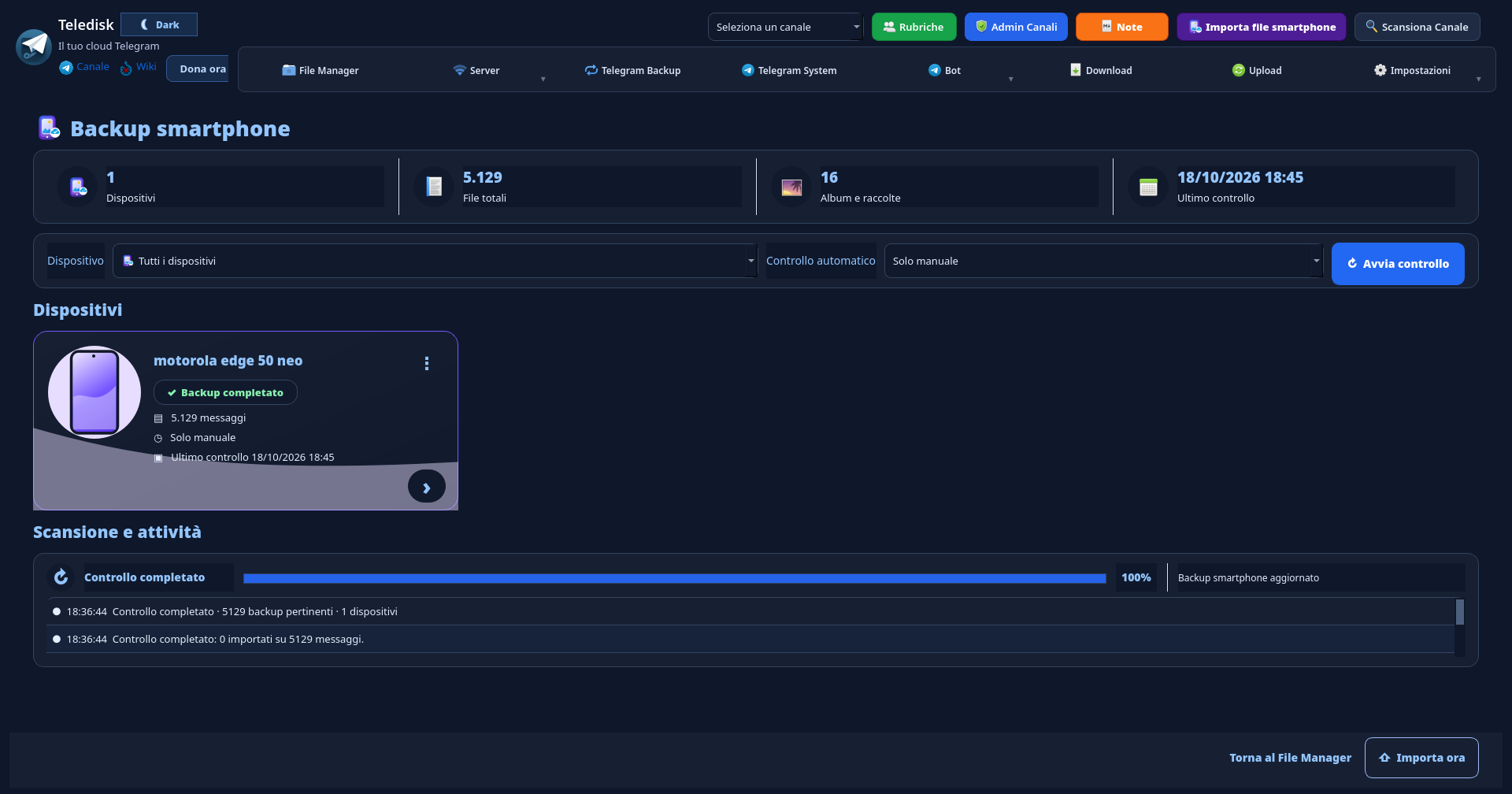
“Importa file smartphone” opens Phone backup. Desktop recognises compatible TeleDisk Media backups in your Saved Messages and links them to File Manager, distinguishing devices and collections.
- In Media for Android, complete a small backup to your Saved Messages first. Use the same Telegram account on Desktop.
- Open “Importa file smartphone” and review devices, total files, albums and last check. Filter by device when needed.
- Use “Avvia controllo” (Start check) to inspect available backups; “Importa ora” (Import now) is a separate step. Check the activity result.
- Return to File Manager to browse indexed items. Importing references does not mean automatically downloading all photos to the PC.
Example: back up two phone photos, check them on Desktop, import their references and try downloading one photo.
14. If content is missing, check the right stage
File Manager, media libraries, the APK catalogue and Telegram file bytes are separate layers. Check where the workflow stops before repeating uploads or rebuilds.
- If a file is missing from File Manager, check the original message, channel access and index refresh.
- If it appears in File Manager but not the media library, review source, type, scan and metadata matching.
- If the library is correct but Stream stays outdated, check database generation/publication and re-import it in the APK.
- If a title appears but will not play, check server status, account/bot access to the message, network and logs.
Example: a video already indexed and present in the library does not need another upload just because the phone still has an old database.
For support, include version, operating system, section and error message. Do not publish bot tokens, Telegram codes, passwords or licence keys.
Your next step?
Your device.
Packages from the official catalogue.
Versions and availability managed by the site.