
Your Desktop, in the browser.
Install TeleDisk in Docker with noVNC, a persistent volume, Docker Compose or Portainer. A practical guide for your server and network.
1. Prepare your host
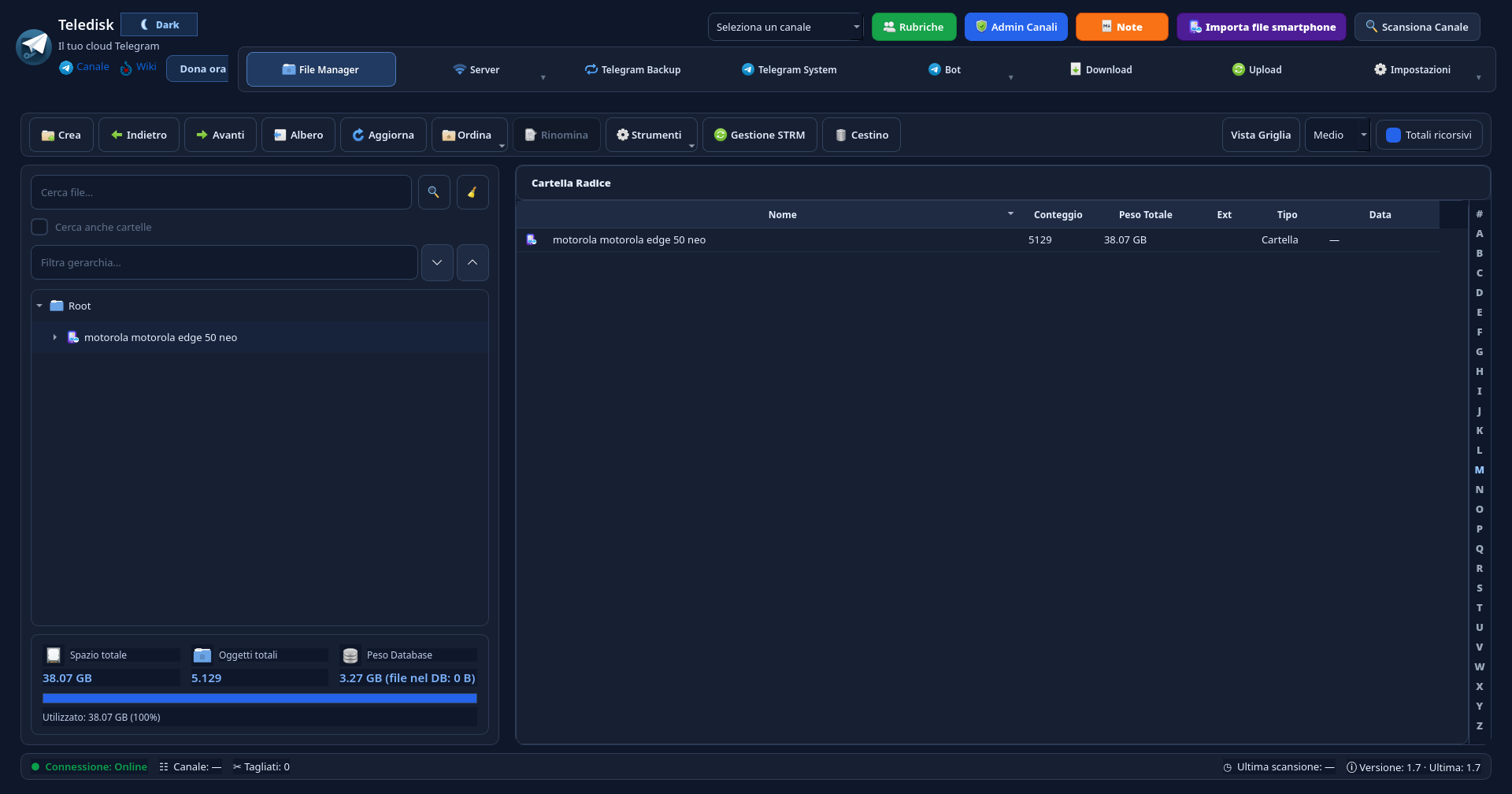
The Docker release starts the Linux bundle in a lightweight desktop accessed through noVNC. You need a running Docker installation, space for the image and data, and a working Telegram connection.
- Check Docker on the computer or server that will run Teledisk.
- Download the official script and review it before running it.
- Prepare browser access to the host and restrict its noVNC port on your network.
Example: start on a machine in your LAN and access the interface only from your trusted network.
2. Install and open noVNC
The official script tries the registry and can use the site’s published tarball as a fallback. Linux normally uses host networking; Docker Desktop may need bridge networking.
- Download teledisk-docker-run.sh from the download centre and review its contents.
- Run the script on the host and wait for the image to load.
- Open http://localhost:6080/vnc.html?autoconnect=1&resize=remote on that host.
Example: from another device on your LAN, replace localhost with the server’s private address.
Do not expose noVNC directly to the internet without suitable access control.
3. Docker Compose and Portainer
The official Compose and Portainer files describe the container and its volumes. If the image is unavailable in the registry, the script can load it before deployment.
- Download the script and run it with TELEDISK_DOCKER_LOAD_ONLY=1 to prepare the image.
- For Compose, download teledisk-docker-compose.yml and run docker compose -f teledisk-docker-compose.yml up -d.
- For Portainer, open Stacks → Add stack, use the official teledisk-portainer-stack.yml and deploy the stack.
Example: use Compose for a repeatable configuration; check volumes and networking before starting the stack.
4. Persistent data and downloads
The teledisk-data volume stores data and configuration. The local ~/TelediskDownloads folder is mounted at /downloads. Recreating the container should not remove its volume.
- Check the data mount and download folder in your configuration.
- Configure your account inside noVNC and test a download to /downloads.
- Before updating, stop the app cleanly and keep a consistent copy of the volume.
Example: a file downloaded to /downloads should appear in ~/TelediskDownloads on the host.
The volume may contain Telegram sessions and personal settings: protect it like a credential and never publish it to Git.
5. Verify and troubleshoot
If the browser cannot open noVNC, check the container and network first. If the interface opens but Telegram does not respond, check connectivity and sign-in inside the app.
- Check container status and logs in Docker or Portainer.
- Check port 6080, the firewall and conflicts with other host services.
- When using bridge networking, check DNS and connectivity; use the mode intended for your host.
Example: if localhost works but another PC cannot connect, check the host address and LAN rules before reinstalling.
Download and review the script, then run it:
curl -fSLo teledisk-docker-run.sh https://teledisk.net/release/teledisk-docker-run.sh
less teledisk-docker-run.sh
bash teledisk-docker-run.sh
Load image only, for Compose/Portainer:
TELEDISK_DOCKER_LOAD_ONLY=1 bash teledisk-docker-run.shYour next step?
Your device.
Packages from the official catalogue.
Versions and availability managed by the site.