
Your memories, with more room.
Android gallery with optional Telegram backup: photos, videos, folders, verified uploads and phone storage recovery.
1. Start with the local gallery
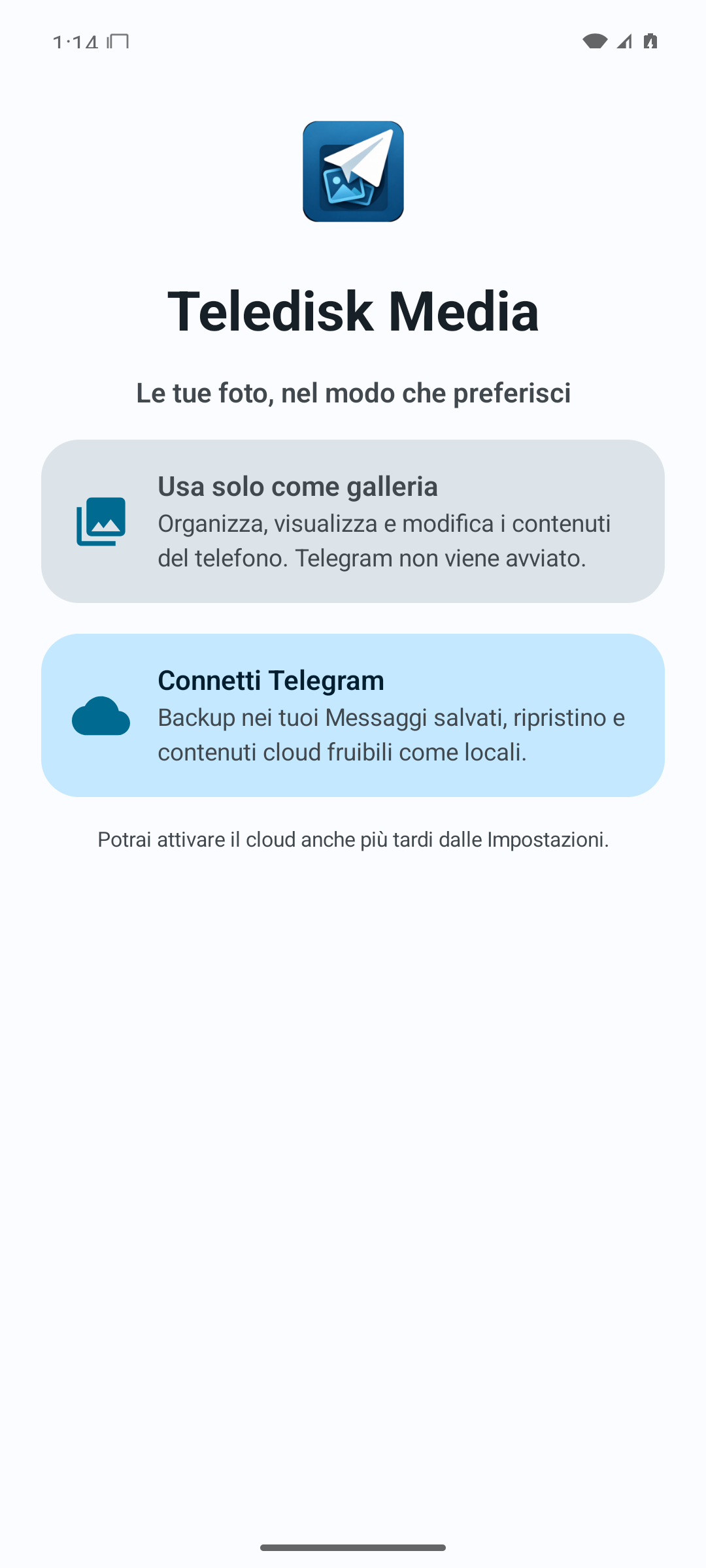
Media also works as a local gallery without connecting Telegram. You can enable the cloud later. Stream handles your media catalogue; Media focuses on personal photos, videos and backups.
- Install the official APK and open the welcome screen.
- Choose the local gallery and grant Android access to the content you want to view.
- Explore Photos and Collections; open an item to view it full-screen.
Example: use Media to browse camera photos before enabling any backup.
2. Connect your Telegram cloud
Optional backup uses only your own Saved Messages. The app shows disclosures and terms before sign-in. A Telegram account and the release’s access/licence conditions are required.
- Open Telegram connection and read the data disclosures.
- Enter your phone number, Telegram code and two-step verification password if requested.
- Wait for connection and check that the destination is your personal account.
Example: choose a test image without sensitive information and verify that its backup appears in your cloud.
Saved Messages are Telegram cloud chats, not end-to-end encrypted secret chats. Teledisk is independent of Telegram. Where offered, the beta trial is assigned once to a newly verified identity.
3. Choose what to back up
You can include camera, WhatsApp, Telegram and other available device folders. Android’s file picker lets you authorise additional files or folders.
- Open backup options and choose the sources you need.
- If a folder is missing, use the Android picker to grant access.
- For your first test, keep a copy on both the device and Telegram.
Example: select only Camera for the first backup; add WhatsApp after checking the result.
4. Start and monitor backup
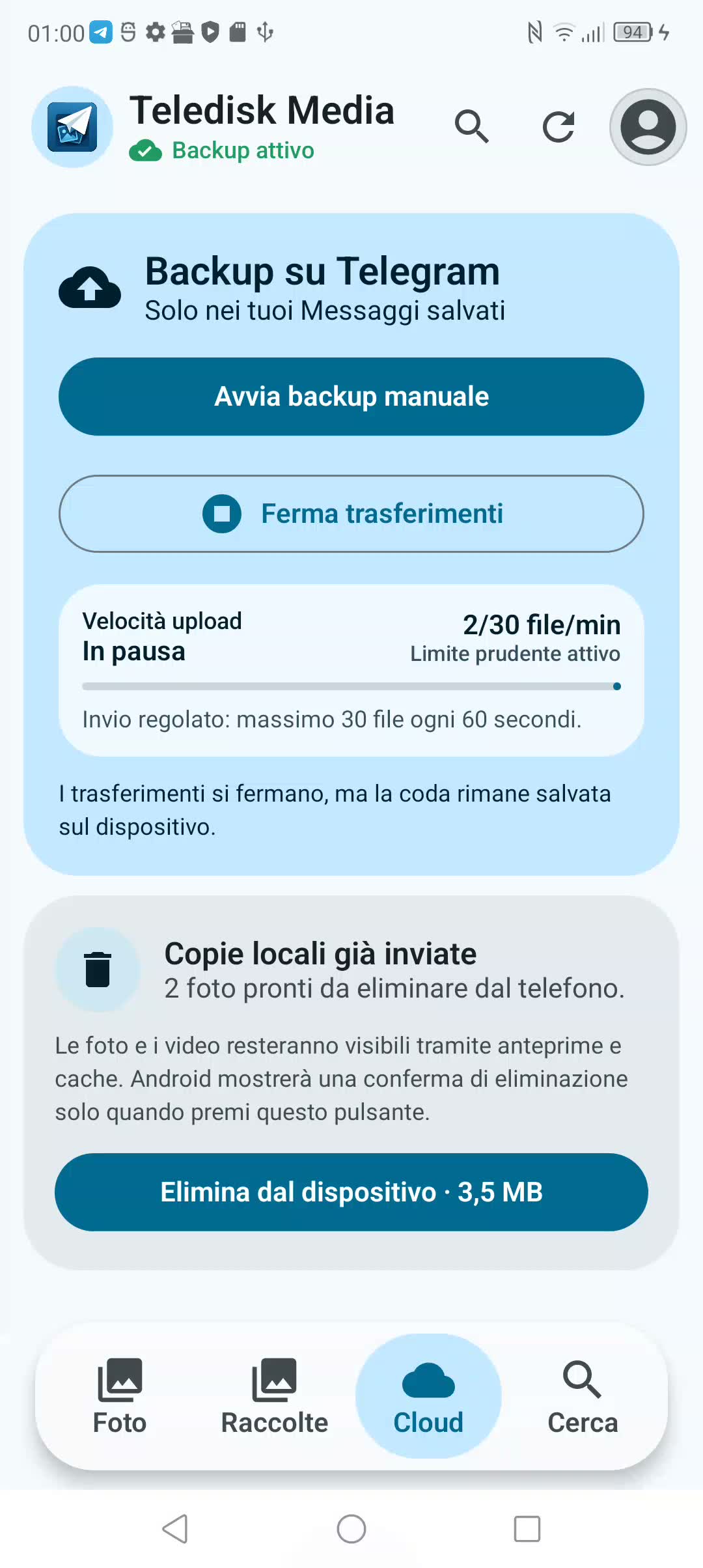
The queue retains upload state. Transfers are paced to respect Telegram limits; the Backup screen shows progress, start/stop controls and verified content.
- Connect your phone to a stable network and start a manual backup.
- Follow queued files and wait for upload verification.
- If you need to stop, use the in-app stop control and check status on the next launch.
Example: two test photos let you check connection, queue and remote confirmation before backing up thousands of items.
FloodWait is a temporary Telegram limit. Repeatedly restarting backup does not remove it.
5. Automation, Wi-Fi and mobile data
Automatic backup depends on Android rules and manufacturer settings. You can choose Wi-Fi or mobile data with a monthly limit. Force-stopping prevents normal background work until you reopen the app.
- Set the allowed backup network and optional monthly mobile allowance.
- Follow the app’s guidance on permissions and battery restrictions.
- Test with a new photo and check its status after the next backup cycle.
Example: use Wi-Fi for the full library and mobile data only for the needs you planned.
6. Free space after verification
Local removal is offered after backup verification. Android may ask for additional confirmation. The thumbnail and cloud reference remain available, but restoring the original requires Telegram access.
- Review items marked as verified and the space you can recover.
- First try opening or restoring a file from the cloud.
- Select only the items you want and confirm local removal in Android’s dialog.
Example: free the space used by two verified photos and check that they remain accessible in Cloud.
Do not also delete the copy in Saved Messages. Keep an independent copy of important memories.
7. Open, share and restore
Cloud photos can be retrieved into cache for viewing, editing or sharing. Remote videos can stream through range requests. Cache and restored files use local storage.
- Open Cloud and choose a verified item.
- Wait for the original to be retrieved before sharing or editing a photo.
- For restoration, check free space and verify the retrieved file.
Example: retrieve a photo removed from the phone and share it after the download finishes.
8. Permissions and data control
The local gallery and backup are separate choices. Read privacy, terms and account-deletion information to understand the data involved. Deleting a Teledisk account is not the same as deleting a Telegram account.
- Review permissions in Android settings and keep access to the sources you want to use.
- Before revoking access or changing accounts, keep copies of the files you need.
- Use the official Privacy, Terms and Account deletion pages linked below.
Example: revoking folder access can prevent new backups from that source; check the queue after changing permissions.
9. From Android backup to Desktop
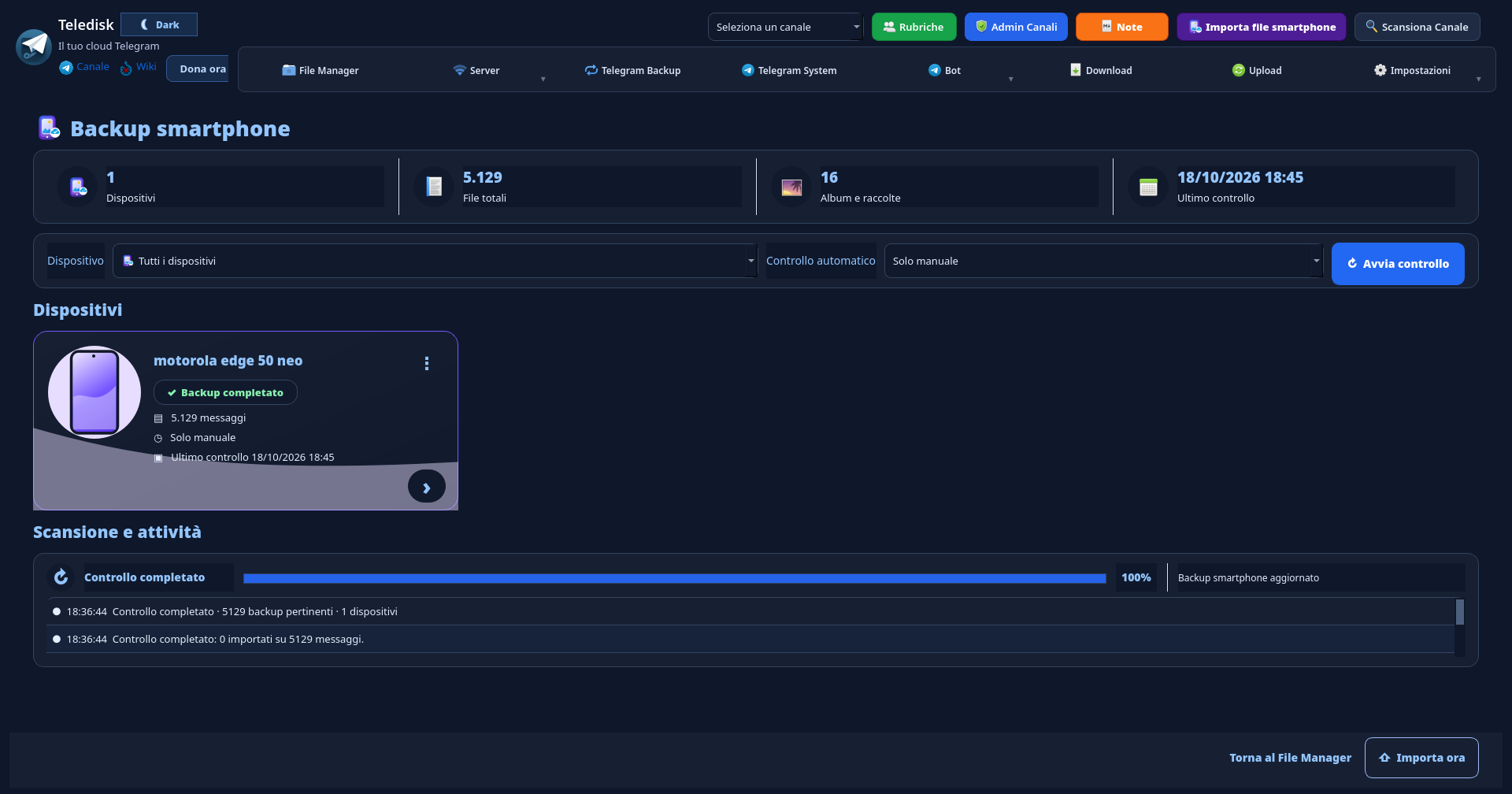
Desktop 1.7 can find compatible Media backups in your Saved Messages. Your phone uses the Media APK; your computer uses the Desktop application.
- Complete a small Media backup and verify it in Saved Messages.
- Use the same Telegram account on Desktop and open “Importa file smartphone”.
- Review devices and use “Avvia controllo” (Start check); “Importa ora” (Import now) is the separate step that adds references to File Manager.
Example: back up two phone photos and check that the device appears on your PC before importing a larger archive.
Index import does not automatically download all files to the computer.
Your next step?
Your device.
Packages from the official catalogue.
Versions and availability managed by the site.