
Your library. Press play.
A guide to TeleDisk Stream for Android and Android TV: import your Desktop catalogue, explore libraries and play your Telegram videos and music.
1. Install and connect Telegram
Stream is the suite’s Android player with phone and TV interfaces. It uses content you configure and can access; it does not include a film or music subscription.
- Download the official Android APK and install it on a compatible device.
- If Android asks, allow installation for the browser or file manager you are using.
- Sign in to Telegram inside the app and follow the initial catalogue import.
Example: prepare a library of your own videos in Desktop so that you have a catalogue to import on first launch.
2. Import from a channel or bot
Onboarding provides two workflows: the full database published by Desktop to a channel, or packages prepared by the bot through “Guarda su App”.
- For a complete catalogue, choose “Importa da Canale” and select the channel containing the database.
- Press “Importa e apri catalogo” and wait for completion.
- For bot packages, choose the bot workflow and use “Importa pacchetti dal bot”.
Example: after adding a library in Desktop, publish the database again and use “Importa DB dal canale” in Stream.
3. Home, search and favourites
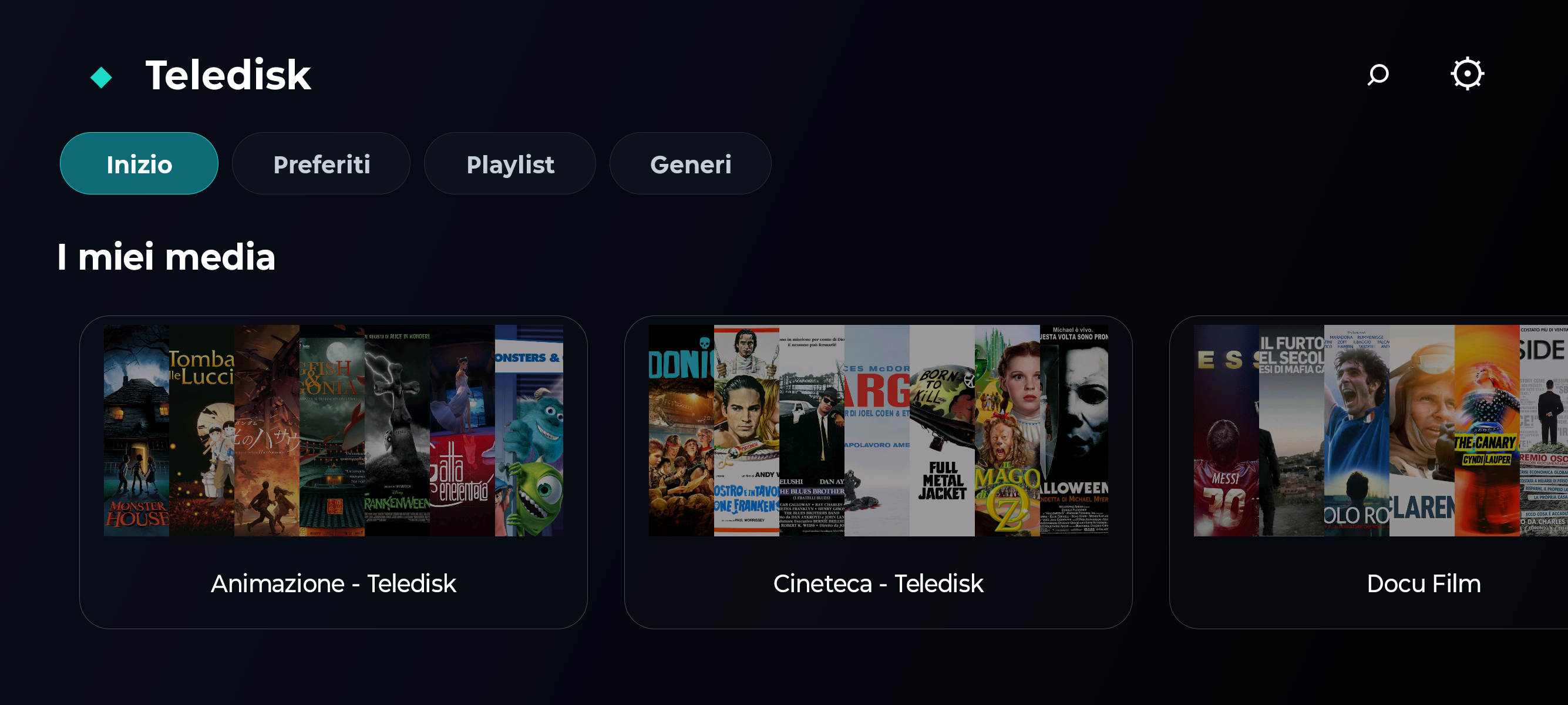
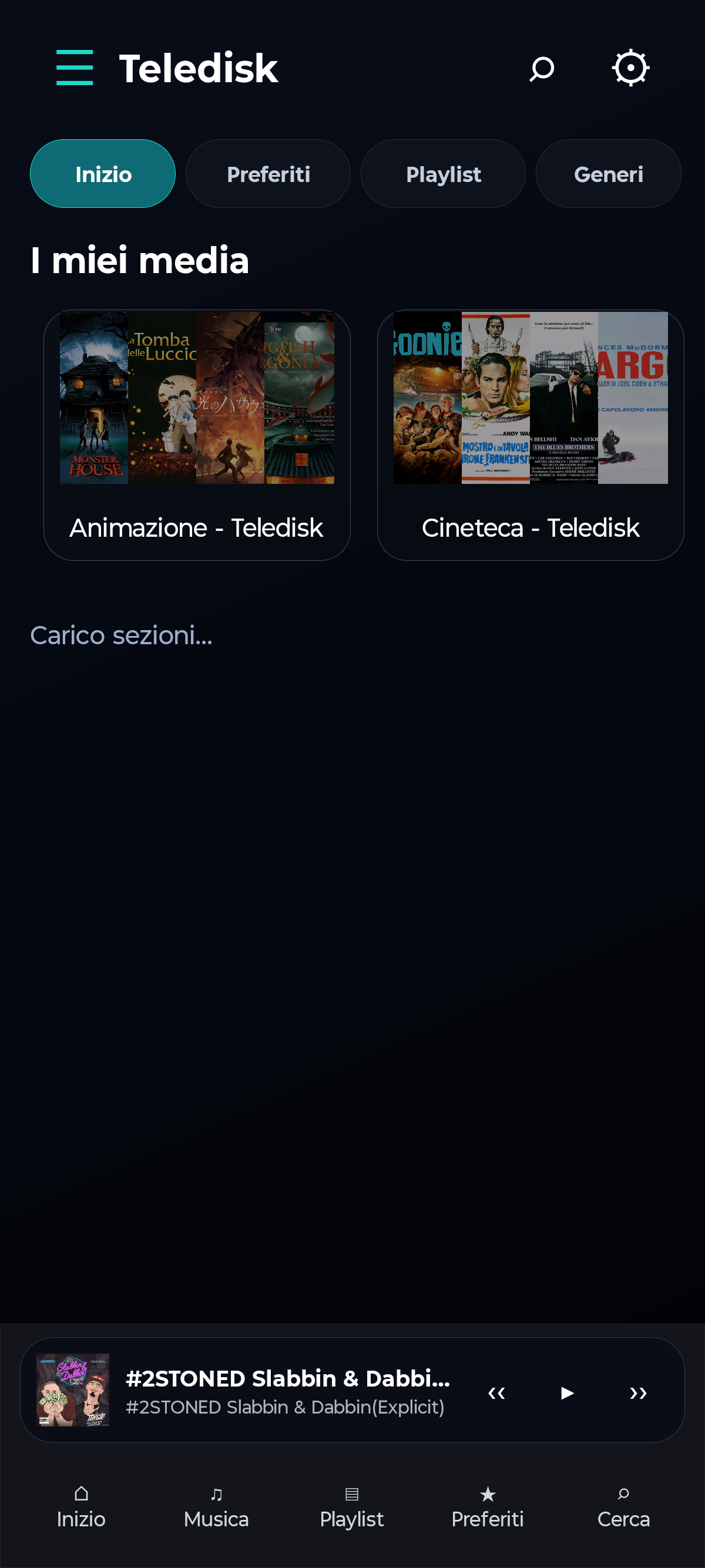
The Home screen groups libraries under “I miei media”. Search, Favourites, Playlists and Genres help you find content. Available sections depend on the imported catalogue.
- Open a library from the home screen or search for a title.
- Open the item details to check its description, format and available actions.
- Use favourites to keep track of titles; in home settings choose which libraries to show and their order.
Example: on a phone used for music, you can show only the Music library on the home screen.
4. Video, seeking and buffering
When you press Play, Stream requests the bytes needed by the player from Telegram. The whole file does not need to download before playback starts. Seeking requests new segments and may take time.
- Open one of your videos and press Play on a stable connection.
- Allow the initial buffer to fill, then seek once to check playback.
- If the device struggles, try a lower-bitrate file and check codec compatibility.
Example: compare a personal 1080p video with a high-bitrate 4K file to distinguish device limits from catalogue problems.
Network, codecs, hardware and Telegram limits affect playback. Streaming uses local cache and data traffic; it does not mean offline playback or guaranteed speeds.
5. Albums, tracks and playlists
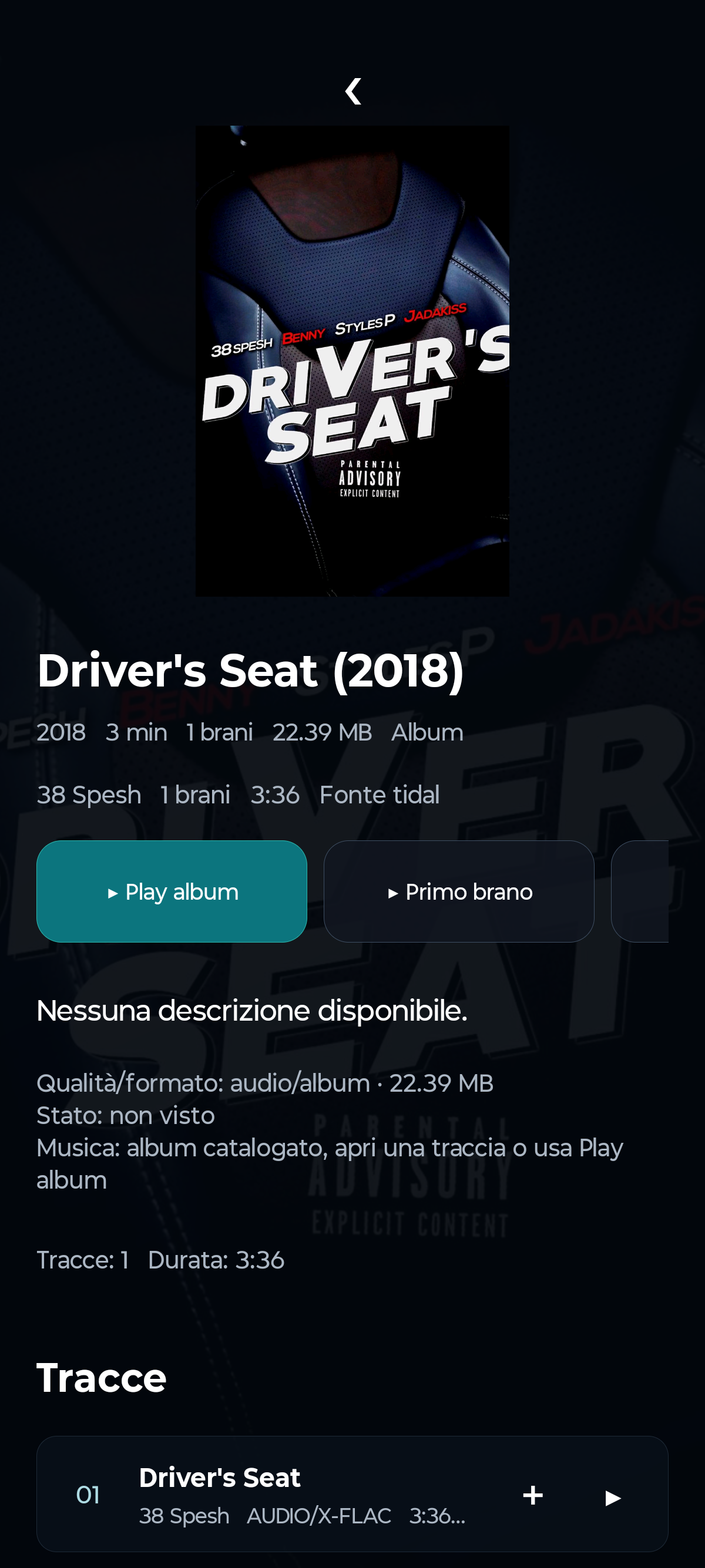
Music libraries have album details and dedicated playback actions. The catalogue needs track references and metadata prepared beforehand.
- Open your Music library and choose an album.
- Use “Play album” for the collection or the Play control beside a single track.
- Organise listening with the playlists available in the app.
Example: import a collection of your own recordings, check the track order and play the whole album.
6. Use Stream on your TV
On Android TV, browse the catalogue with your remote. The same Telegram sources must be accessible to the account linked on the TV.
- Install the compatible Android package and complete TV sign-in.
- Import the catalogue and test navigation with the arrow keys and OK.
- Check audio and video with a short file before playing larger content.
Example: play a family video and use Back to return to the library without importing again.
7. Empty catalogue or stalled playback?
An empty catalogue calls for checking the import. An existing title that will not play calls for checking its source and connection.
- If no titles appear, rebuild the database in Desktop, publish it and import from the correct channel.
- If only one title fails, check that its Telegram message has not been removed.
- If all content waits, check the network, Telegram access and possible service-imposed delays.
Example: a title removed from a channel can remain in an old catalogue until the database is refreshed.
8. Trakt and cross-device resume
In configured builds, Trakt synchronises playback progress, watched state and favourites. The catalogue and files stay in Teledisk: Trakt does not supply content or replace Telegram libraries.
- Open Trakt in settings and start linking. Use the code or QR on Trakt’s official page.
- Authorise your account in the browser. You do not need to enter a Client ID or Client Secret in the app.
- Play an item, close the player and allow synchronisation. On the second device, open the app with the same Trakt account and the item already in its catalogue.
- Use “Sincronizza ora” for a full synchronisation of watched state, favourites, progress and Collection.
Example: stop a video on your phone and find it in Continue Watching on your TV after a successful sync.
If the app says the build is not configured, Trakt linking is unavailable in that package. A new device requires account linking again; your Trakt plan’s limits apply.
9. Export libraries to Trakt
Export uses the TMDB identifiers of films and series in your catalogue. It can update Collection and private lists for each library; it does not transfer files or publish Telegram channels.
- Check that titles have correct metadata and identifiers.
- Use “Esporta libreria su Trakt” and check its status.
- On Trakt, look under your own lists for names such as “Teledisk - library name”.
Example: a Cinema library has its own private list; watched state is in History, not Watchlist.
Missing compatible identifiers and account limits may reduce the exported item count.
10. Prepare the catalogue with Desktop 1.7
Libraries are prepared in the Desktop application. The Stream APK then imports the published catalogue; the two applications have distinct roles.
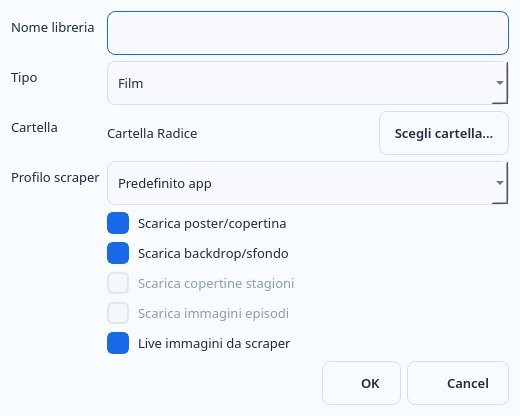
- On Desktop, open Server → Gestione Librerie → Aggiungi libreria.
- Set name, type, folder and profile, then check matching for your own content.
- After preparing and publishing the DB, return to Stream and import from the configured channel or bot.
Example: prepare a small Personal videos library and import it on your phone before publishing the full catalogue.
Your next step?
Your device.
Packages from the official catalogue.
Versions and availability managed by the site.